Save Data GuideMove an island between Nintendo Switch systems
Tomodachi Life Save Data Transfer: Move Your Island Safely
Keep a Tomodachi Life: Living the Dream island when you replace or add a Switch. Choose the system transfer path that matches your user profile, verify the destination save, and keep the original data until the island opens correctly.
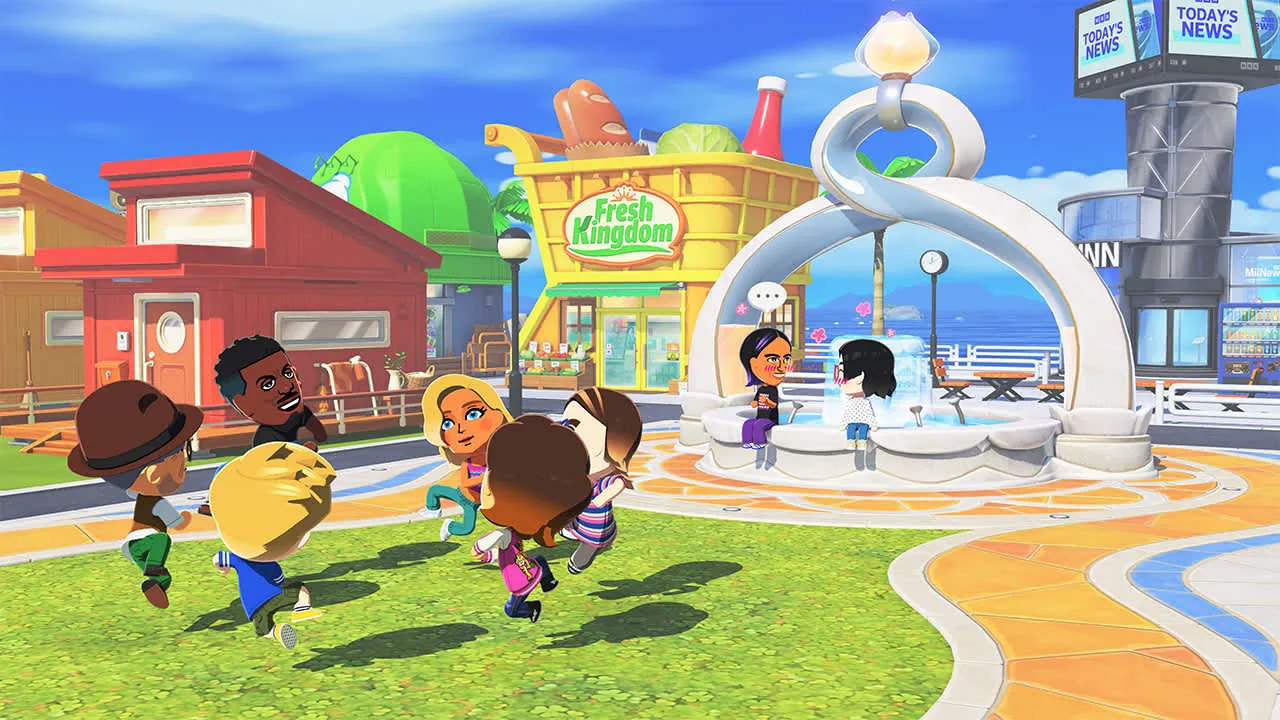
Official game imagery for context. This is not a Nintendo save-transfer screen.
Choose the transfer scope
Replacing a console may call for a full system move. Moving one resident's island can use a supported user or save-data transfer path.
One profile, one island
Nintendo says each registered user has a separate save file and island. Select the user that owns the island you want to keep.
Verify before cleanup
Open the game on the destination system and confirm the correct island appears before deleting data or resetting the source console.
Quick answer: move the user save, not just the game software
Tomodachi Life save data transfer moves a user save, not the installed game icon. Nintendo says each registered user has a separate save file and island, so identify the profile that opens the island you want to keep.
For a replacement console, use Nintendo's system transfer. To move one player, use the official user or save-data transfer option shown on your systems. A save-data transfer removes the selected source save, so keep the old console untouched until the destination island opens.
Cloud backup is separate and works only for eligible software. The game's FAQ does not confirm this title's eligibility, so check for Save Data Cloud in the software menu before relying on it.
Choose the Tomodachi Life save transfer method that fits
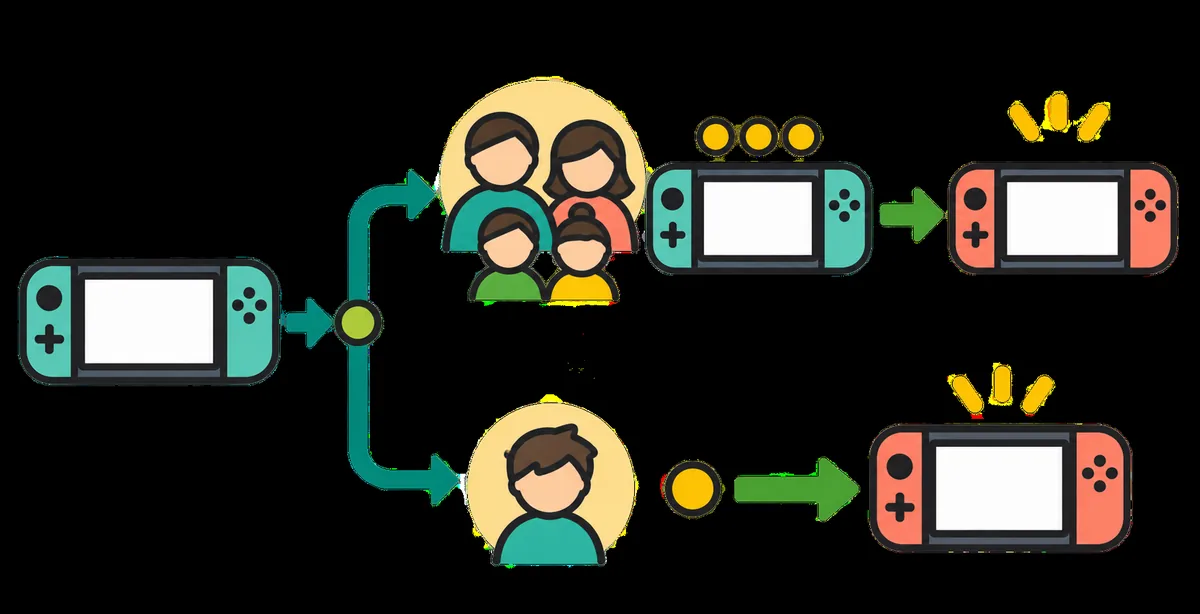
Replacing a console? Compare Nintendo's full system transfer. Moving one island only? Use the user or save-data path and select the profile that owns it. Read both screens before confirming: a full transfer includes more account and purchase data.
Each registered user has a separate island. A transfer does not merge islands or copy one resident's island to another profile.
Use the transfer scope that matches your move. The illustration is editorial and does not reproduce Nintendo menus.
Your situation
Starting point
What to confirm
Replacing the old Switch
Nintendo's full system transfer flow
Which accounts, profiles, saves, and purchases are included
Moving one player's island
Nintendo's user or save-data transfer flow
The selected user owns the island; source-save removal is expected
Keeping both consoles in use
Check official multi-console and cloud options
Do not assume both systems can write to one shared island
Moving only the game software
Redownload or insert the game on the target system
Software installation alone is not save migration
How to move one user's Tomodachi Life save to another Switch
Use this route when only one player's island should move. You need both consoles and the user profile that owns the source save; menu labels can vary, so follow the current on-screen transfer flow.
Nintendo says a transferred save leaves the source console. Selecting the wrong profile can move a different save or none of the island you want.
1
Prepare both systems
Install available updates, connect both consoles to power, and keep them nearby.
2
Check the source profile
Open the old console's user list and confirm which profile opens the island.
3
Open transfer settings
Start Nintendo's official save-data transfer and follow the source and target prompts.
4
Select the matching save
Choose the same user and Tomodachi Life save; read what the confirmation says will leave the source.
5
Finish both sides
Keep both systems on until the source and target report completion.
6
Verify the destination
Launch as the same user and confirm the expected island before changing the old console.
Replacing the entire console: when a full system transfer makes sense
If replacing the old Switch, Nintendo's system transfer moves accounts, profiles, saves, and purchases. This is broader than one game's save, so review the on-screen list before starting.
If some household users should stay behind, follow Nintendo's per-user steps and move only the intended profiles. Use current instructions for your console pair. If the source or account is unavailable, or a prompt is unclear, stop and contact Nintendo Support.
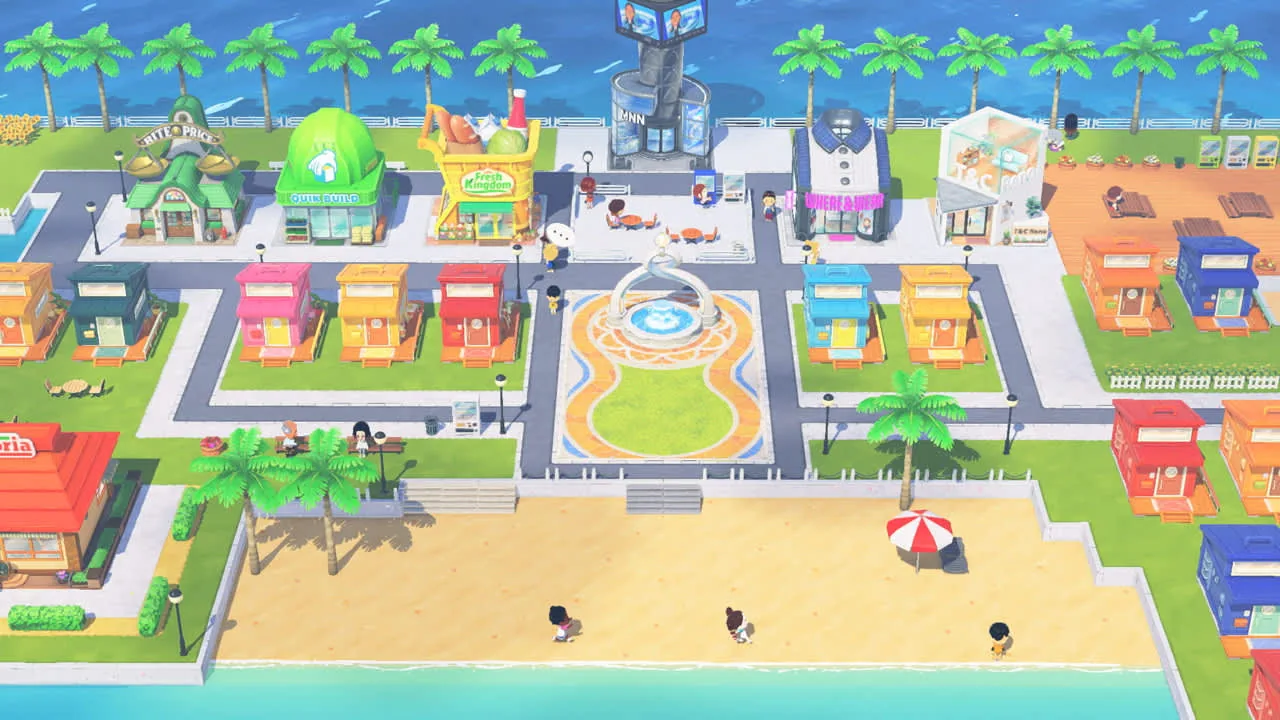
Nintendo confirms each system user has a separate island. This official image shows the game world, not the console migration flow.
1
Read the destination prompt
Match the console and account to the move you intend.
2
Move intended profiles
Follow the official per-user process and check each selection.
3
Wait for completion
Keep both systems on; do not reset or trade in the source.
4
Verify before retiring the source
Open the game as the owning user and check the island first.
Does Tomodachi Life support cloud save transfer?
Eligibility is title-specific. Nintendo says cloud saves require Switch Online and supported software, but the game's FAQ does not say whether this title qualifies.
On the source, open the game's Options from HOME and look for Save Data Cloud for the correct user. If missing or unsupported, use Nintendo's system or save-data transfer instead.
If available, compare backup dates before downloading on the target: restoring can replace a newer local copy. Keep the source until the correct island opens.
Cloud check
What it means
Safer next step
Save Data Cloud appears for this title and user
The game exposes the system backup option
Review timestamps and use Nintendo's backup/download instructions
The option is missing or says unsupported
Eligibility is not confirmed for this user/software
Use a supported console or save-data transfer path
Two copies show different dates
One island may be newer than the other
Stop before download or overwrite; compare the local island first
Before and after the move: protect the right island
Before moving, confirm which user opens the island and whether other household profiles should move. Keep the source save intact.
Afterward, launch on the destination as the same user and check residents, homes, or requests. If a new island appears, stop: do not overwrite it or erase the source.
1
Record the owner
Note the profile name and confirm which user opens the island.
2
Protect the source
Do not delete data or initialize the old console before checking the destination.
3
Open the matching user
Select the profile that owned the source island.
4
Check, then clean up
Verify residents and homes; only then decide whether to remove the old profile.
Troubleshooting when the island is missing or looks new
First try the original user profile. Nintendo keeps a separate island for each user, so another profile can make a saved island look missing.
If the user is correct, check completion on both systems and confirm the intended save was selected. Do not repeat transfers blindly: the source save may have been removed, and a cloud restore can overwrite a newer copy.
If the correct save is still unclear, stop changing both consoles and contact Nintendo Support with the console models, profile, transfer method, and time. Leave any working copy untouched and avoid unofficial restore tools.
Symptom
Check first
Avoid
A blank or new island appears
Try the original user profile on the destination
Do not start overwriting it with new progress
Only one of several users moved
Check whether the intended profile was selected
Do not assume one user's move included everyone
Cloud backup shows an older date
Compare source and cloud timestamps
Do not download over a newer local island
Transfer stopped or failed
Read both systems' status and official recovery steps
Do not reset either system while the save location is uncertain
Save transfer is different from Mii sharing and demo carryover
Moving a game save is not Mii export. Nintendo says Miis made in Living the Dream cannot be copied to console Mii storage or other games.
Demo carryover and local play are different too: the demo guide covers continuing demo progress, while nearby play does not merge user saves.
Can I transfer my Tomodachi Life island from Switch 1 to Switch 2?
Nintendo's system tools support moving user and save data between compatible consoles. Use the current official transfer flow for your systems, then open the game as the same user and verify the island. The game FAQ confirms separate per-user saves but does not publish a separate Tomodachi-specific migration walkthrough.
Can I move only one Tomodachi Life island to a new Switch?
Nintendo describes user-by-user migration for replacement systems and a separate save-data transfer option. Select the profile that owns the island and read the source-removal message before confirming.
Will the island stay on the old Switch after save transfer?
Nintendo says save-data transfer removes the selected save from the source and moves it to the target. Verify the target island before resetting, selling, or deleting anything on the source console.
Does Tomodachi Life: Living the Dream support cloud saves?
The official game FAQ we checked does not confirm cloud-save eligibility. Nintendo's general cloud instructions require Switch Online and supported software. Check whether Save Data Cloud appears for this game and user before relying on it.
What should I do if my island is missing after transfer?
Check that you opened the game under the same user profile that owned the old island. Then stop making changes, review transfer status on both systems, and contact Nintendo Support if the correct save still does not appear.